Can you use two phones as a baby monitor?
This guide goes from installing to the first night, using the real screens. We make NightEar ourselves, so the steps are for this baby monitor app for two phones.
What do you need?
- Two devices: an iPhone or iPad on iOS 18 or later, or an Android phone (we test from Android 10). Any combination is fine.
- One Wi-Fi network at home, the same one for both.
- NightEar on both devices, from the App Store or Google Play. You don’t create an account.
- A charger for the phone in the baby’s room.
Got an old phone in a drawer? Check which old phones can still do this first.
Step 1: install the app on both devices
Install NightEar on both and open it. Each permission the app asks for gets a one-line reason first. The baby phone asks for the microphone and, if you also want to watch, the camera. The parent phone uses its camera only to scan the QR code. On iPhone and iPad, NightEar also needs permission to use the local network, or the phones can’t find each other.
Step 2: choose which phone does what
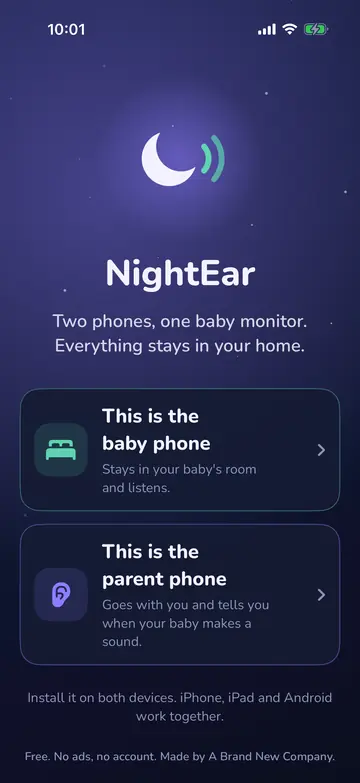
The first screen asks for the role. The phone that stays in the baby’s room becomes "This is the baby phone". The phone that goes with you becomes "This is the parent phone".
Step 3: pair with the QR code
The baby phone shows a QR code with a 16-character code underneath. Scan the QR code with the parent phone, or type the code if scanning doesn’t work. A code works for one phone and for ten minutes, and only while the pairing screen is open.
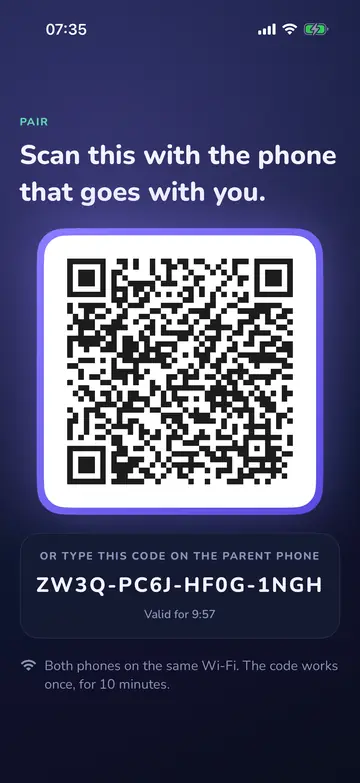
Both phones then show each other’s name. The app also asks what to call your phone, so other parents can see who is listening. That can wait.
When pairing fails, the network is nearly always the reason: one phone has dropped to 4G or 5G because the Wi-Fi is weak there, or one of them is on a guest network or behind a VPN. See help with pairing and what to do when the phones can’t find each other for each case.
Get the baby phone ready
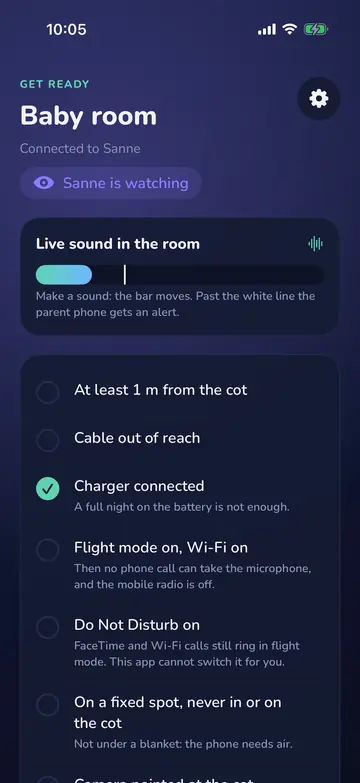
Before you start, the baby phone shows a short list. A bar at the top moves with the sound in the room, so you can see the phone hears it. The list doesn’t stop you from starting. It is there for you to check off:
- At least 1 metre from the cot (crib), in a fixed spot, never in or on the cot and never under a blanket. A phone needs air.
- Cable out of reach of your child.
- Charger connected. This line ticks itself.
- Flight mode on, Wi-Fi on. A phone call then can’t take over the microphone. The app can’t switch this on for you.
- Do Not Disturb on, because Wi-Fi calling can still ring otherwise.
- Camera pointed at the cot, if you also want to watch. This one is optional.
Tap "Start listening". The screen goes black at its lowest brightness, with a dim clock. Tap it and it lights up for 10 seconds to show who is connected, the battery and the Wi-Fi. To stop, you hold for a second and a half, so a stray touch can’t end the night.
What will you see and hear on the first night?
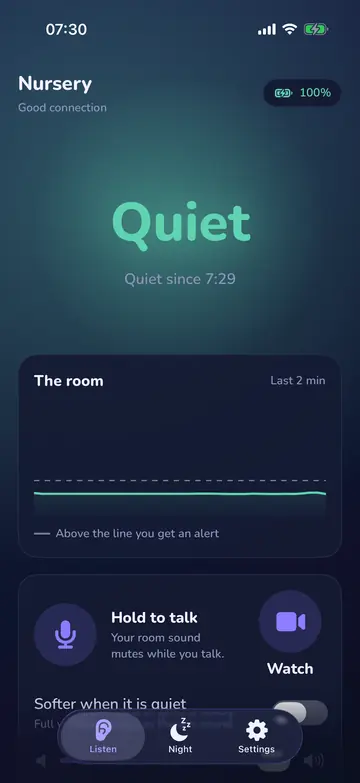
The parent phone shows one big word: Quiet, Sound or Crying. Below it you see how long it has been quiet, how good the connection is and how full the baby phone’s battery is. You hear the room live. You can lock your phone or use another app, and listening and alarms carry on.
If the room gets louder than it normally is, a full-screen alarm goes off and comes back every 30 seconds until you tap "I’ve seen it". If the phone recognises crying, the alarm says "Your baby is crying". That label won’t catch every cry, but sound without a label still sets off the alarm.
If the connection drops, the screen says "Silence on the line" after 3 seconds. After 10 seconds a loud alarm sounds, also with your screen locked, and the app keeps trying to reconnect.
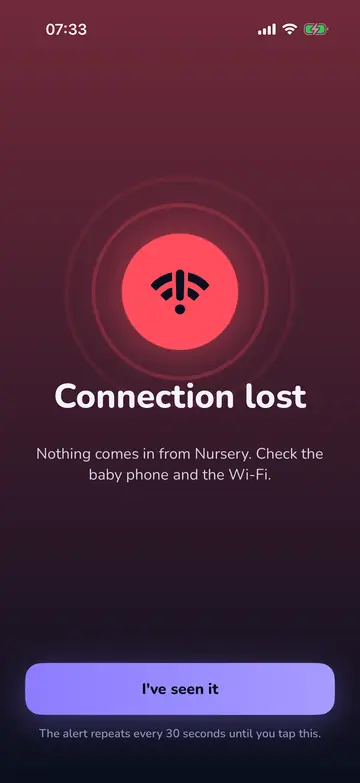
Do two things before you go to sleep. Pick "Test the alarm" in Settings, so you know how loud it is on your phone. And take the parent phone to another room: phones lying close together hear each other and start to howl. NightEar notices and turns the room sound off, while alarms keep working. The rest of what the app does, such as a live picture with Watch and talking back with Talk, is listed under all features.
Which combinations work?
iPad with iPhone
That works. The iPad runs the same app and can be the parent phone or the baby phone, as long as it’s on iPadOS 18 or later. If the iPad stays in the baby’s room, keep the cover open: a closed cover can switch off the microphone.
iPhone with Android
That works too, with the same QR code and the same code to type. One thing needs extra attention on Android: some phones stop apps at night to save battery. The Phone check in the app shows what to change for your brand. See also the Android settings.
A third phone, or the grandparents
Up to four phones can listen to one baby phone, and two can watch at the same time. On the baby phone, pick "Pair another phone" in Settings, or at night tap "Pair a phone" on the lit screen. Listening carries on for the others. A fifth phone is told it’s full and joins by itself when one stops.
The next evening
You don’t pair again. Open NightEar on both phones and they find each other within a few seconds. Then tap Start listening on the baby phone. Until then the parent phone says the baby phone hasn’t started yet. On an Android parent phone you also tap Listen to and the room’s name.
Where it stops
NightEar only works on the same Wi-Fi, so at home. You can’t listen from work or from a neighbour’s house, and mobile data doesn’t work either. In return, the sound goes directly from phone to phone and not over the internet. How that works, and your options without good Wi-Fi, is in baby monitor app without Wi-Fi.
Frequently asked questions
Can you use two iPhones as a baby monitor?
Yes. Both iPhones need iOS 18 or later and the same Wi-Fi. You pair them with the QR code, and after that they find each other by themselves.
Does it work with an iPhone and an Android phone?
Yes. NightEar works with iPhone, iPad and Android in any mix. Live sound, alarms, Watch and Talk are in both versions.
Does the app have to stay open on the baby phone?
Not for listening: the phone can be locked and the alarms keep working. It does for the live picture, because a phone switches its camera off as soon as the app goes to the background or the screen locks.
Does it work when I’m not at home?
No. Both phones must be on the same Wi-Fi network. Listening from outside your home or over mobile data is not possible.
Is NightEar free?
Yes. There are no ads, and you don’t create an account.
NightEar is not a medical device and does not replace adult supervision.